IMPORTING INDIVIDUALS
Import Individuals
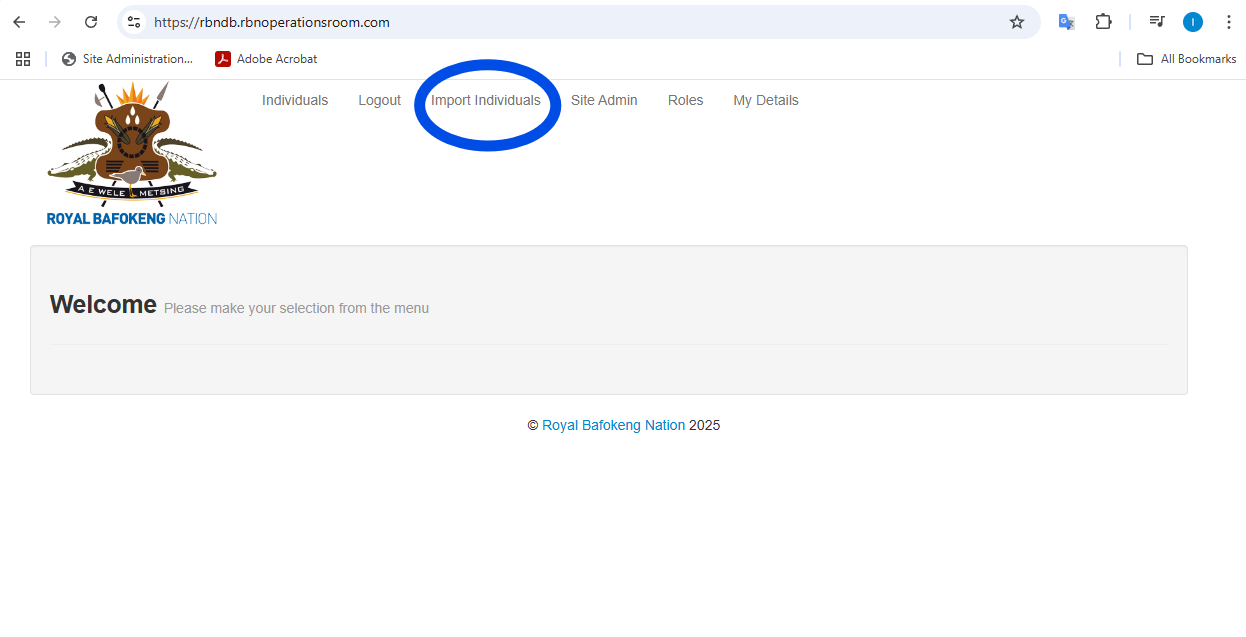
Once you are logged in navigate to Import Individuals in the top menu:
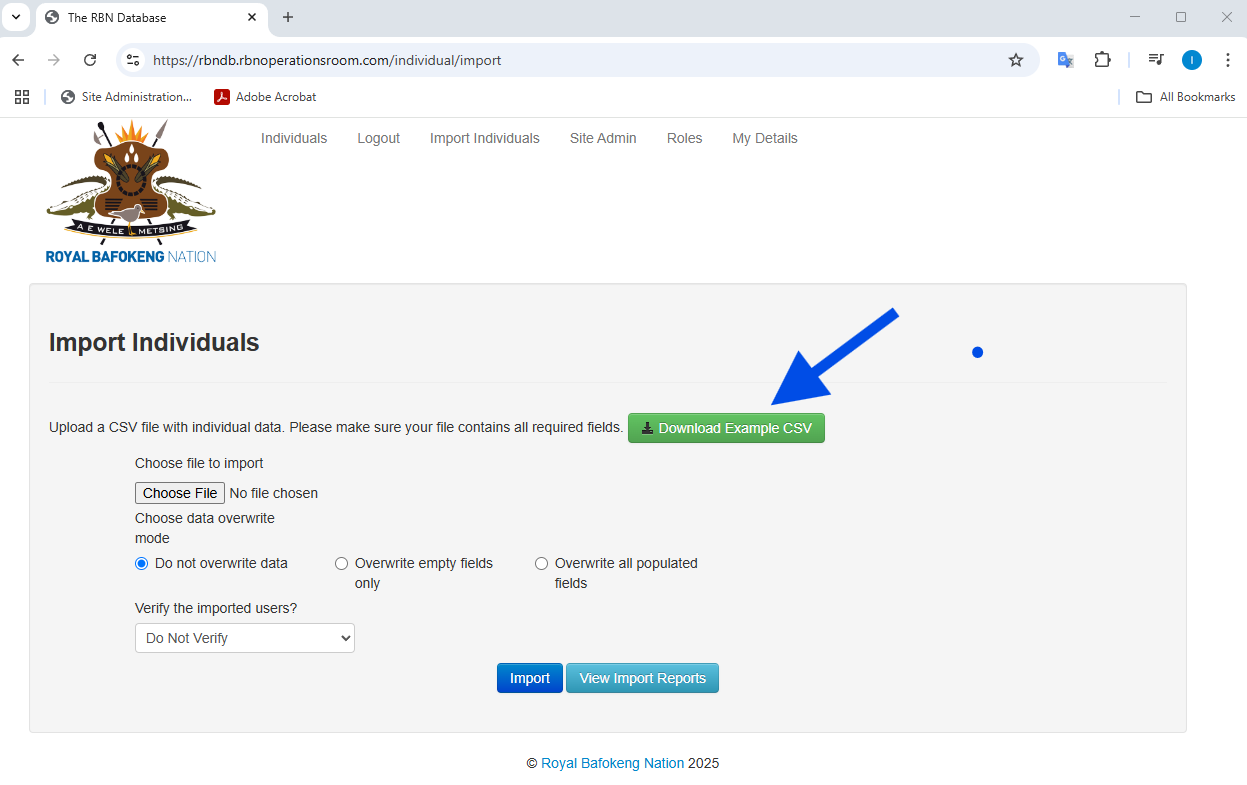
Download the Example CSV to ensure your Import file is the correct format.
Ensure your Import fields consist of at least a valid ID number, First name and Last name.
Choose your file to import
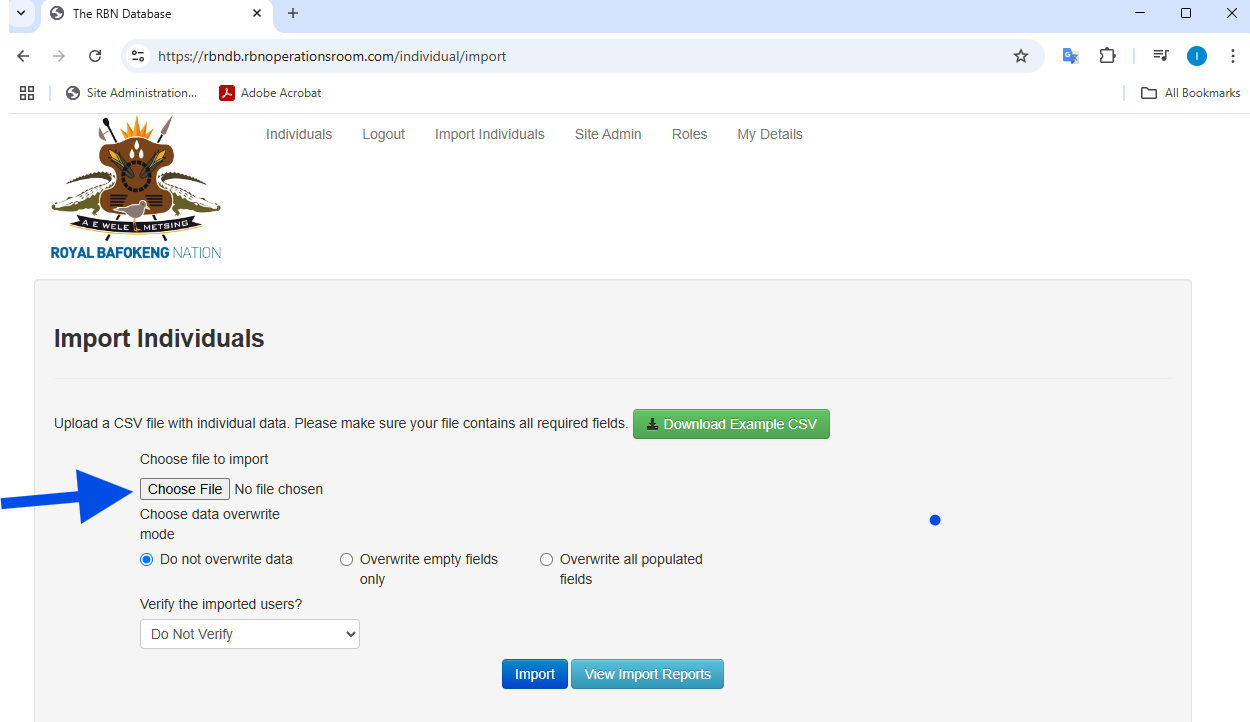
Select one of the three overwrite options:
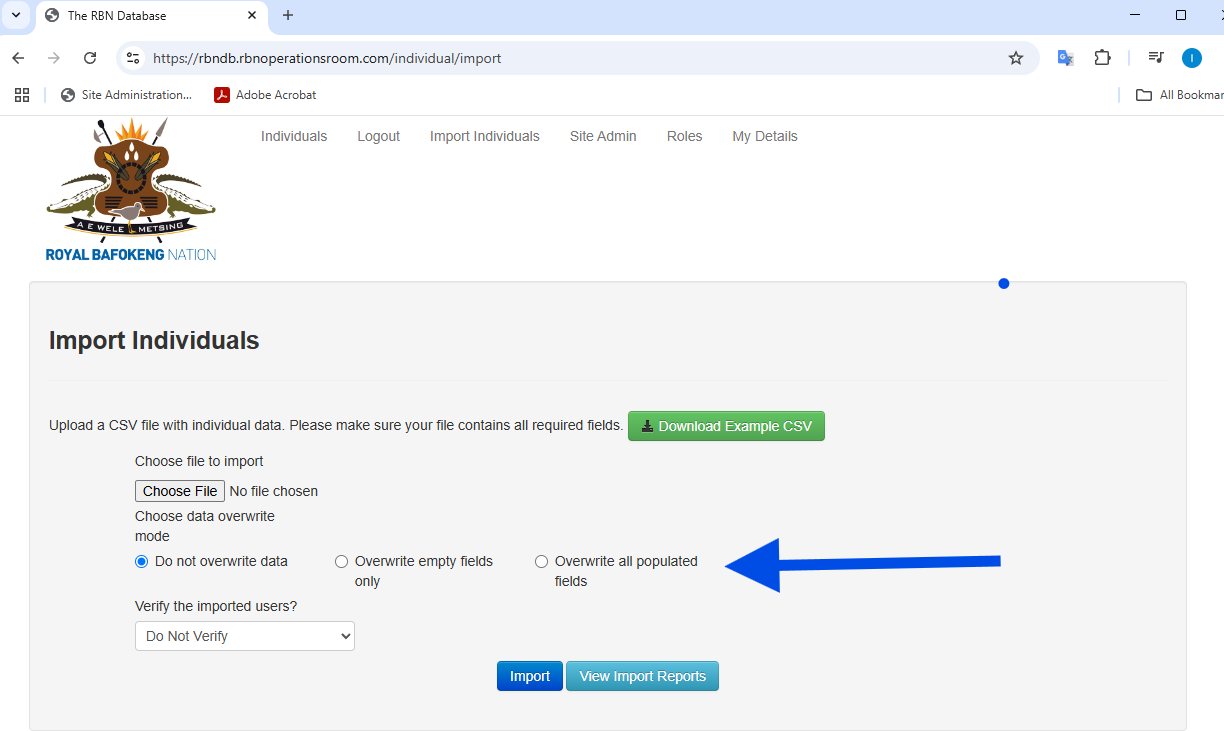
Do not overwrite: If the record exists it will not add any information, only adds new records.
Overwrite empty fields only: If the record exists and the he field is empty it will be populated.
Overwrite all populated fields: This will overwrite and add data to all fields.
Select to Verify the imported users:
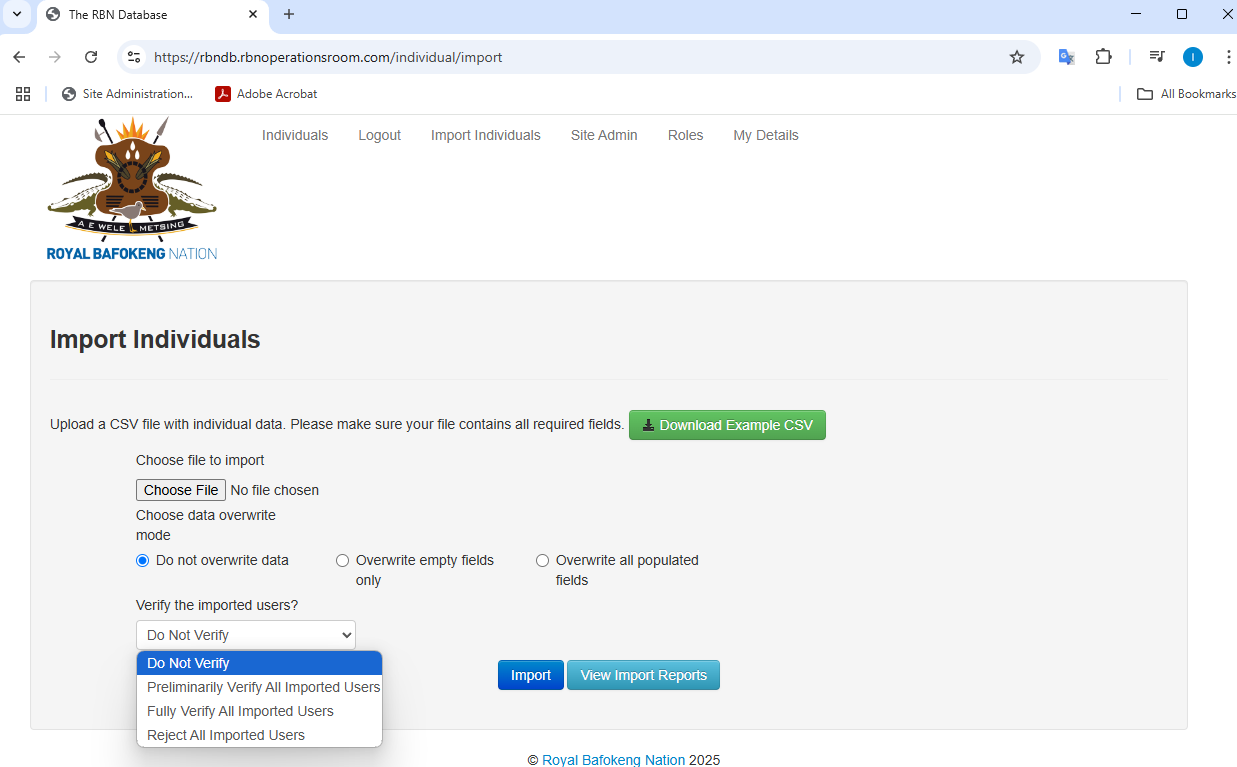
Do Not Verify: This will not verify any of the records.
Preliminarily Verify All Imported Users: All records in the import will be marked as preliminary verified.
Fully Verify All Imported Users: All records in the import will be marked as fully verified.
Reject All Imported Users: This will mark all the record in the import a rejected.
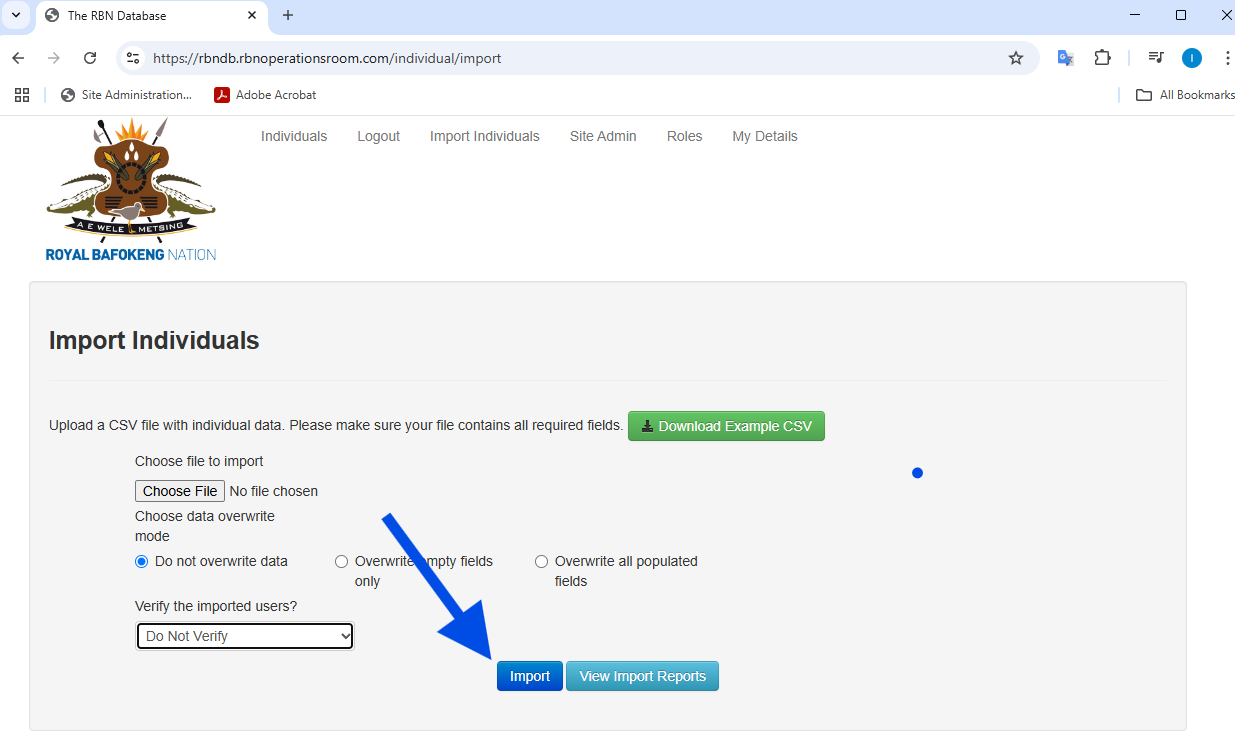
Once happy with the options click on Import:
Viewing Imports
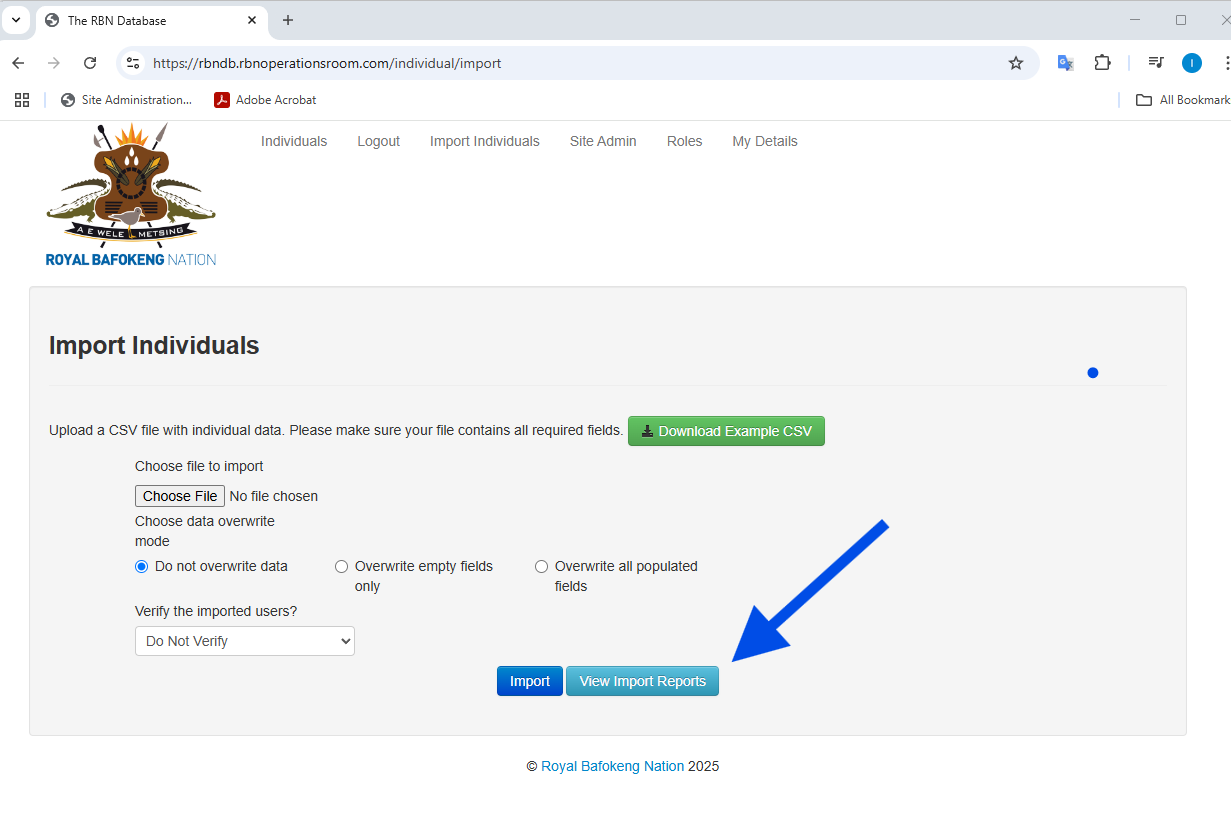
You will see the list of previously imported files:
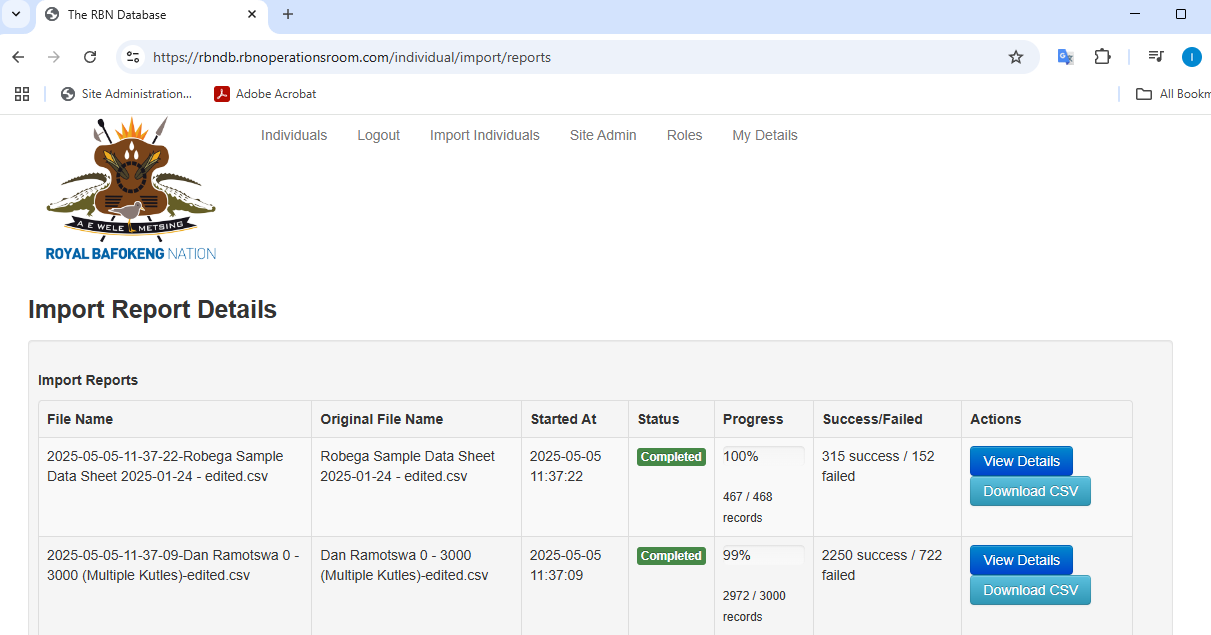
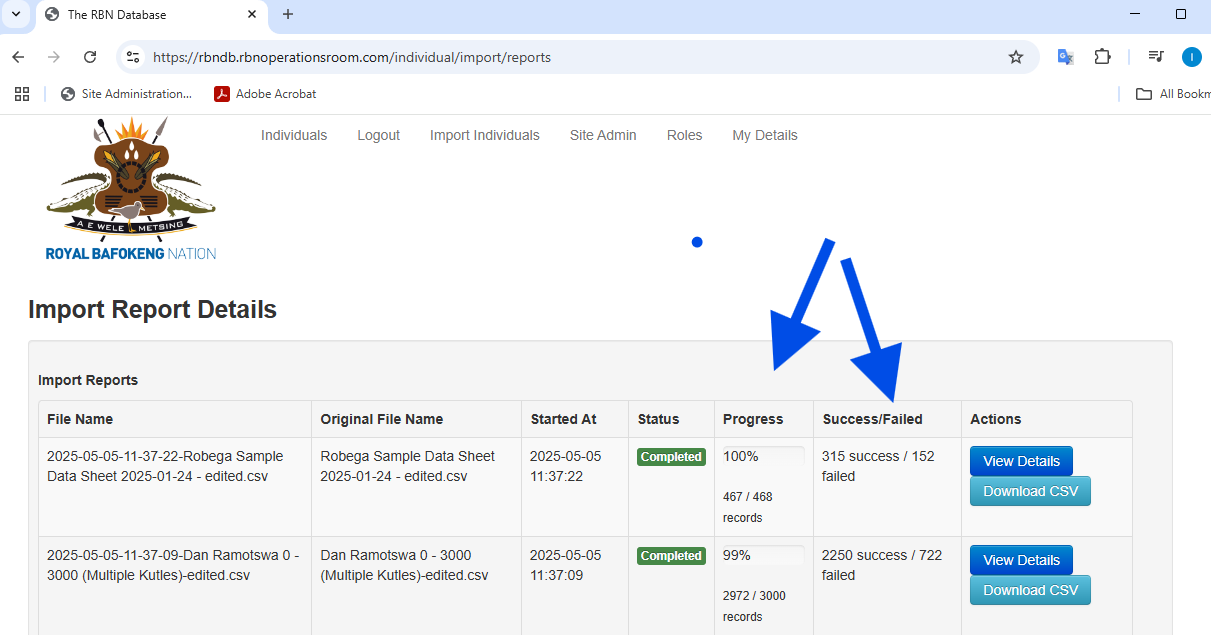
The progress is displayed in the progress column and gives an indication of the success and failure rate.
You can view the details of each record whether it was successful or failed by clicking on the View Details button
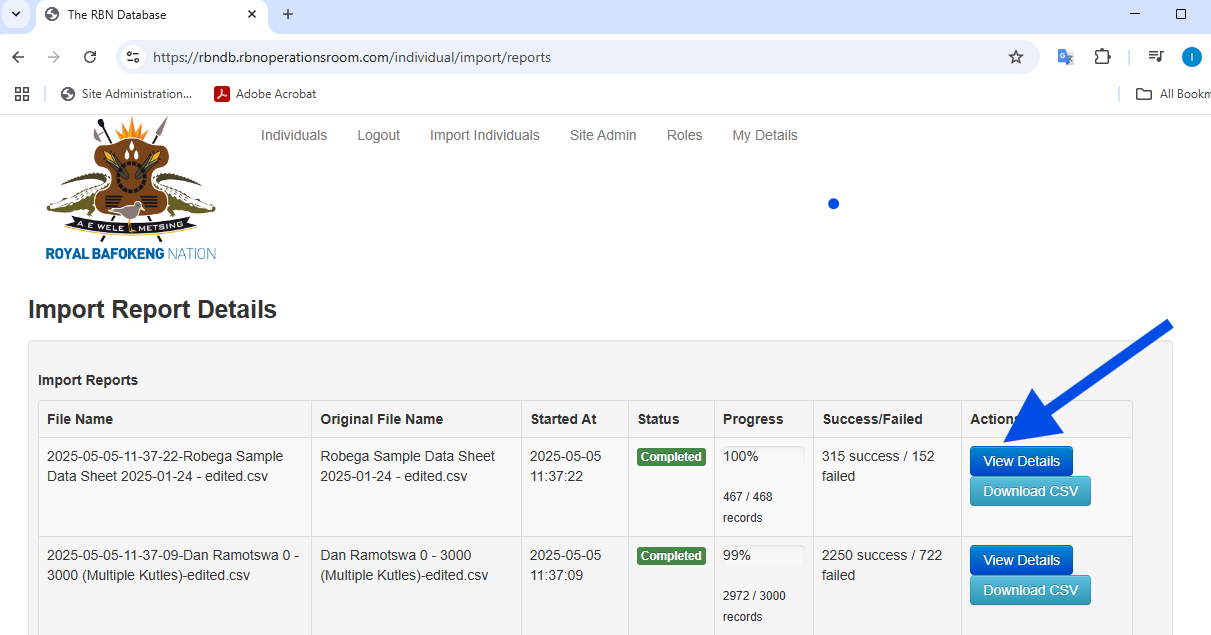
View Import Details
Click on the View Details button when on the View Import Report page
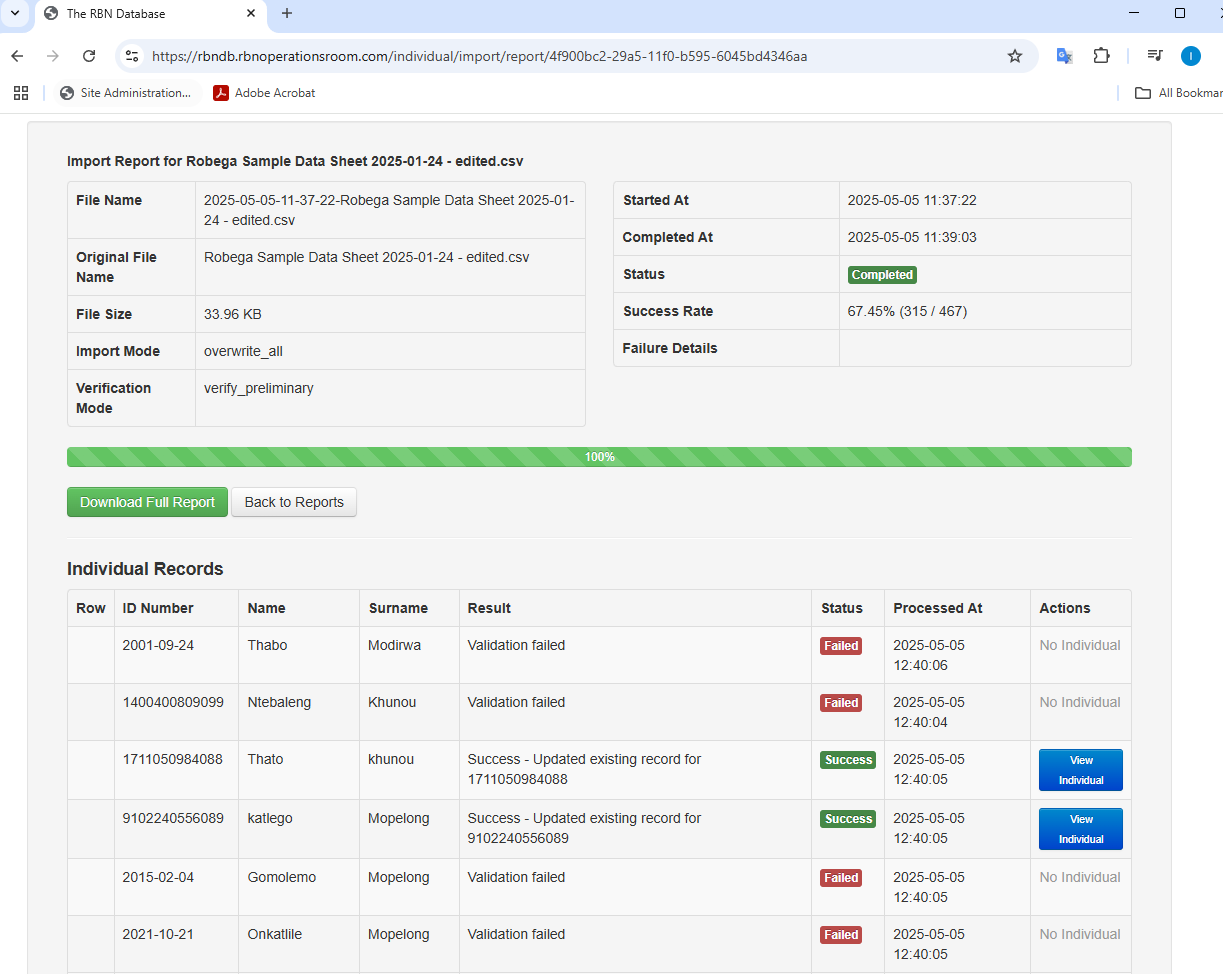
This page gives you all the details of the import per file uploaded. If the import is still busy, the progress bar will give an indication of the time left to complete the import.
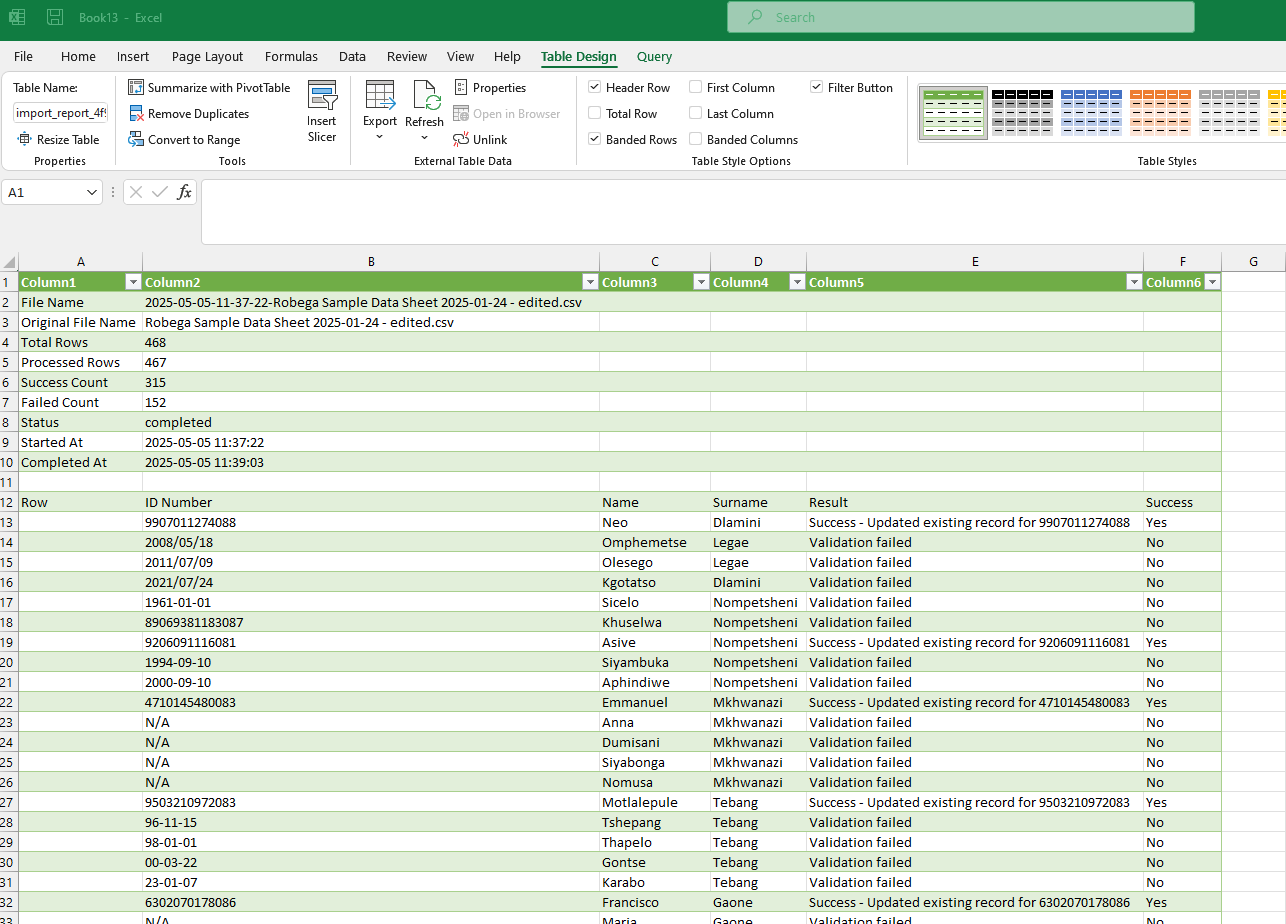
The report consists of the ID Number, Name and Surname. The result and status of the import for each record is displayed. There is also button which will take you to the linked individual on the system for verification.
A full CSV export is available of the import is available by clicking on the Download Full Report button.
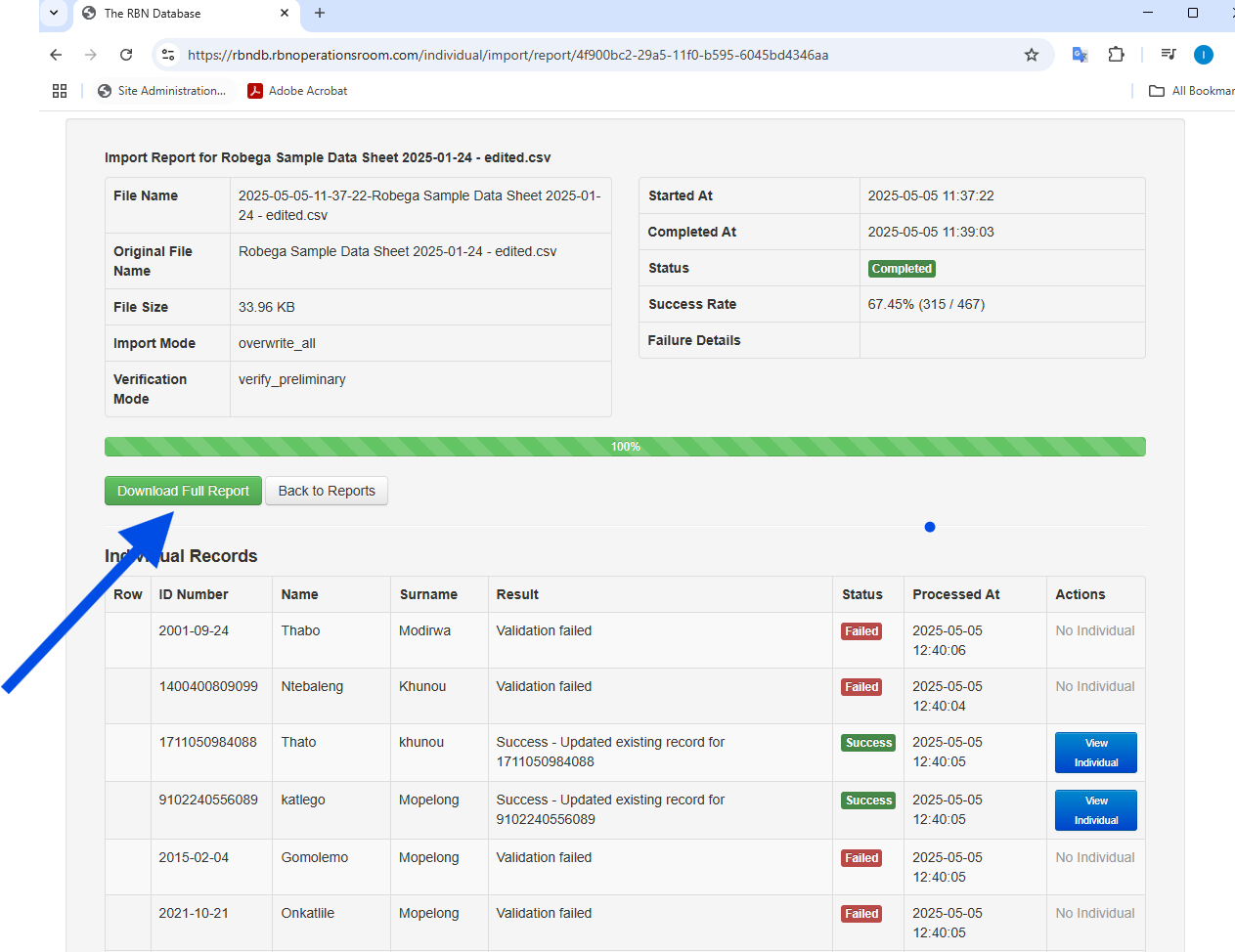
The CSV download can be imported into Excel for analysis